

This month my family marked a big milestone: Our 16-year-old daughter got her driver’s license. We celebrated with a takeout dinner that she picked up herself on her first solo drive.
In our house, getting a driver’s license prompts another big teen milestone: A first smartphone. We’ve followed Rule #4 in my book 10 Rules for Raising Kids in a High-Tech World that first phones are basic phones, not smartphones. That meant our 14-year-old and 16-year-old had phones designed for kids – an Android phone with built-in parental controls and no way to download social media, gambling, or AI companion apps. But once a teen gets her license, Rule #5 (first smartphone with the driver’s license) kicks in, and she gets the smartphone. My daughter insisted we go to the AT&T store within minutes of coming home after passing the driver’s test.
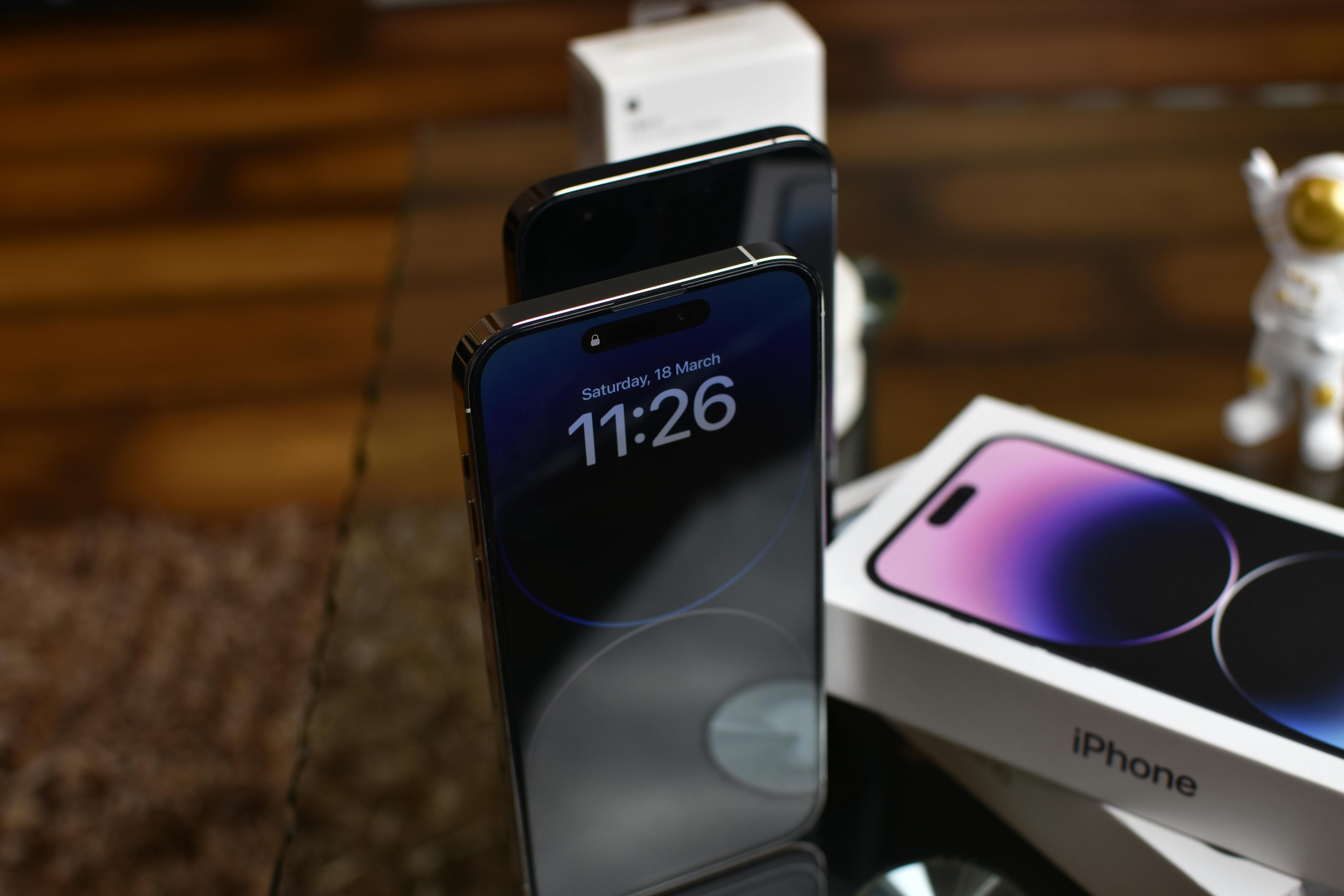
But I wasn’t just going to hand her the smartphone and hope for the best. Driver’s license or not, she’s still a teen and needs some guardrails. The process of setting up an iPhone for a teen is not as easy as I was hoping it would be, so I’m sharing what I learned in case it’s helpful to other parents. Since these are device-based controls, not a dashboard you control from your own device, you’ll need your teen’s brand-new phone for a few hours to set it up. The good news is it’s free, since the controls are built into the device. Here are the steps you might consider:
1. Downtime at night. If you don’t want your teen playing games or watching Netflix on their phone in the middle of the night, you’ll want to set up Downtime. First, go to the Settings app, then Screen Time, and then Downtime. Toggle on “Scheduled” for every day (I left the default of 10pm to 7am; you can choose different hours, or set different hours for the weekdays vs. weekends). Then go to “Always Allowed” to choose the apps your teen will always have access to, even overnight. Phone calls are automatically always allowed. I also left Maps as always allowed. I deleted Messages (texting) and Facetime from always allowed. If things go well (for example, she always puts her phone downstairs at night), I’ll consider putting these two back in always allowed. For now, they’re only accessible during the day, between 7am and 10pm.
2. Block app downloads. Don’t want your teen downloading TikTok without your permission? Or, even worse, an AI girlfriend? Then you need to block app downloads. Go to Settings, then Under Screen Time, go to Content & Privacy Restrictions and toggle it on. Go to iTunes & App Store Purchases and turn off “Installing Apps.”
3. Set time limits for apps. You can set limits for whole categories (like Games) or for individual apps. I wanted to set limits app by app, and this took me a little bit to figure out -- choose Games (or Entertainment), not the circle next to it, to get to the menu of individual apps. Then click the circle next to the individual app (say, YouTube), click Next, and scroll for the time limit. You’ll want to consider the total time this adds up to. If you’d rather set a total time limit for, say, all Games or all Entertainment, you can do that instead.
4. Block adult websites. Under Screen Time, Content & Privacy Restrictions, and then App Store, Media, Web & Games: Choose the settings appropriate for your kid – for example, you can turn music, podcasts, news, and fitness to “clean” instead of “explicit.” I clicked “don’t allow” for movies and TV shows because I don’t want her watching movies on her phone. Under Apps I chose the age range 16+ (the default is 18+); there are lower age limits as well. Under Web Content, I chose “Limit Adult Websites.” (“Unrestricted” is the default).
5. Lock the passcode. Under Content & Privacy Restrictions, under “Allow Changes to” turn “Passcode & Face ID” to “Don’t allow.” This way your kid can’t change their phone passcode, so you have access to their phone without having to weasel the passcode out of them.
6. Block nude photos. Go to Screen Time, and then Communication Safety to turn on blocking nude photos and videos.
7. Limit who they can communicate with. Under Screen Time, then Communication Limits. Here, you can decide who your kid can get messages and calls from. There’s one section for “During Screen Time” – for our purposes that means during the day. I chose “Contacts & Groups with at least one Contact” here. That means she can communicate with anyone in her contacts and anyone in a group chat with one of her contacts. It blocks single messages from anyone not in her contacts; my thought was this would prevent her from getting unknown number calls and texts. Another section is “During Downtime,” meaning overnight. Emergency numbers are always allowed, and I added the contact for AAA and the numbers of our immediate family here.
8. Set your parental control passcode. Under Screen Time, go to Lock Screen Time Settings. You’ll have to enter your email and the password to your Apple ID (not your email password!) to recover the code if you forget it. This means you need an Apple ID and have to remember your password; make sure you have these before you start. Then you’ll choose a 4-digit number code that you know & your kid doesn’t. This is the most important step – if you don’t set up this code your kid can easily change all of the settings you just set up.
There are lots of other things you can restrict as well. Under Intelligence & Siri, you can block AI “math results” and “writing tools.” For Siri, you can block explicit language.
The whole process took about two hours – twice as long as I anticipated, partially because Apple has expanded their parental controls since our older daughter got her first iPhone. That’s good, but it also means there are a lot of settings I didn’t understand.
And it wasn’t over. A week or so after I’d set up my daughter’s phone, I saw she had TikTok on it, which we had not agreed to. How did she get it when I’d blocked app downloads? She’d gone to the TikTok website and downloaded it there – apparently app downloads are only blocked via the app store, not websites.
[cue primal scream]
So if you want to more completely block kids downloading certain apps, there are three steps you can take:
Block specific websites. This setting is pretty hidden, so bear with me. Under Settings, Screen Time, Content & Privacy Restrictions, and then App Store, Media, Web & Games, then Web Content: Click “Limit Adult Websites.” Once you do that, additional menus will appear that say “Always Allow” and “Never Allow.” Click on Add Website and add the URLs of the websites you don’t want your kids to access. That could be social media like Instagram and TikTok, or it could be gambling sites or gaming sites (pornography sites should already be blocked by default). This eliminates the work-around for downloading the associated apps.
Disallow apps. Under Screen Time and then Content & Privacy Restrictions, go to Allowed Apps & Features and toggle off the offending apps. You can turn off the web browser (Safari) here if you want to prevent your kid from downloading social media via the web again. Of course then they can’t use the internet with the phone at all, so this might be a step to take temporarily until they regain your trust.
Set time limits to zero. Under Screen Time, App Limits, click Add Limit, and then choose the category and then the app by touching the circle; then click next. Then set the time limit to 0 hour, 0 min. This is another step to take if they have already dowloaded an app you didn’t want them to have. Even if they download it again, it won’t work.
At least it shouldn’t. This is the supremely frustrating thing about phones: Kids seem to always find a workaround. This experience made me even more grateful my daughter had a basic phone until now. It also strengthened my view that parents should put off giving their kids smartphones for as long as possible – there are just too many ways kids can do stuff parents don’t want them doing on a smartphone compared to a basic phone.
This experience also highlights why we desperately need more regulation of social media. It just plain should not be this hard to keep kids off social media or other apps and websites. The settings are complicated, and a lot of parents don’t have the time, resources, or fight in them to install them.
But if governments required parental permission for minors to have social media, these issues would go away. Same thing if they required age verification. If the age minimum was 16 and was actually verified, parents could at least postpone this rigamarole for a few years. Or the minimum age for social media could be 18, legal adulthood. After all, what other contract can minors sign other than the social media account disclaimer signing away their data? Seventeen-year-olds need a parent signature to go on a school field trip, but not to use social media.
For now: Please share this post. I’ve made it free from day one because I hope it will help other parents in the same situation. With so little support from government or the social media companies, we parents have to work together to keep our kids safe, happy, and healthy. It’s not fair that this is on us, but, for the most part, it is.
Yes! I studied all the loopholes and frustrations of kids & iPhones for years; even the third party options had workarounds. This led me to create LivingRoom for iOS. It blocks the workarounds and is the closest thing there is to an easy button for this. https://livingroomapp.com
Your guide is excellent. If anyone wants even more details, see "The Complete Guide to Setting up an iPhone or iPad for Your Child" here:
https://docs.google.com/document/d/1m1nD5e-N5o-cNbuyH1C8pMhv9ttaxe96S0UR5d1fQFM
You didn't know that THIS is what you'd be needing that PhD for..... :( So frustrating (and down right wrong) that it takes so many hoops to jump through to make a product safe for kids.